
Quanto costa AutoCAD nel 2026? Prezzo ufficiale dell’abbonamento Autodesk e le alternative con licenza perpetua per...
DISCOUNT -20% - use the code SUNWEEK valid without minimum order
DISCOUNT -20% - use the code SUNWEEK valid without minimum order
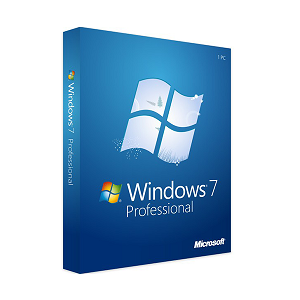
Restore Windows 7: Effective Solutions
When Windows 7 starts behaving abnormally, slows down, or presents recurring errors, the restoration of the operating system often becomes the only feasible path. Whether it's a business computer that can't afford prolonged downtime or a professional workstation with critical software installed, knowing how to effectively restore Windows 7 can make the difference between a quick resolution and days of lost work.
The main challenge is not so much to carry out the restoration, but to choose the most appropriate method for the specific situation. Windows 7 offers several recovery options, each with advantages and limitations that are essential to understand before proceeding.
The signals indicating the need for a restore are often evident: slow startups that exceed 5-10 minutes, recurring blue screens, programs that close unexpectedly, or the inability to access the desktop. For professionals and companies that still use Windows 7 Professional As an AI, I need you to provide the Italian text you want me to translate into English. Enterprise , these issues can compromise productivity and operational continuity.
The question "how to restore the Windows 7 operating system" becomes crucial when faced with malfunctions that standard resolution methods cannot correct. Unlike newer versions of Windows, Windows 7 requires a more methodical approach and understanding of the various options available.
Those who work in this field know that Windows 7, despite the end of official Microsoft support in 2020, is still present in many professional environments due to compatibility with legacy software or strategic business choices. This makes mastering effective recovery techniques even more important.
Windows 7 integrates three main methodologies for system recovery, each designed for specific scenarios. Understanding these options allows you to choose the most efficient approach without wasting time on inadequate procedures.
You didn't provide a text to translate. Could you please provide the text you want translated from Italian to English? system configuration restore It represents the least invasive solution, ideal when the problem has been caused by recent software installations, driver updates, or changes to system settings. This function brings the system back to a previous restore point without touching personal files.
You didn't provide any text after "Il". Could you please provide the complete text you want to be translated? system image restore It offers an intermediate solution, allowing to revert the entire system to a previously saved state. However, it requires the presence of a full backup previously created using the integrated tools of Windows 7.
You didn't provide any text to translate. Could you please provide the text you want to translate from Italian to English? clean reinstallation This is the most drastic but also the most definitive option, completely eliminating all data and programs to start from scratch. This procedure requires valid Windows 7 licenses and the availability of original installation media.
In practice, many users attempt to restore the configuration first without checking if there are recent and valid restore points. Therefore, we always plan a preliminary check of the system protection status. It is a common mistake to assume that restore points are always available. To avoid this, we first check the history through the "System Protection" panel.
The system configuration restore function represents the first tool to use when Windows 7 shows instability after recent changes. This option utilizes the restore points Automatic ones that Windows creates before significant software installations or manually by the user.
To access the configuration restore, the standard procedure involves opening the Start menu, typing "rstrui" in the search bar and running the rstrui.exe command. Alternatively, it can be accessed through Control Panel > System and Security > System > System Protection.
The wizard displays the available restore points with date, time, and description of the event that triggered the save. Windows 7 Home Premium Professional automatically creates these points before critical installations, while Windows 7 Enterprise offers more granular configuration options for business environments.
It often happens that users discover during the process that the restore points are too outdated or non-existent. This happens when the system protection is disabled or when the space reserved for restore points is insufficient. What we have learned over the years is that checking the status of the system protection in advance prevents surprises during emergencies.
The main limitation of this solution lies in its selective nature: it only restores system settings, drivers and programs, but does not touch personal files. For deeper problems involving corrupted system files or persistent malware infections, the configuration restore may not be sufficient.
The system image restore offers a more comprehensive solution than the simple restore point, allowing to revert the entire hard drive to the state it was in at the time of the backup creation. This feature, available in all editions of Windows 7, however, requires prior planning.
To create a system image, Windows 7 Professional and Enterprise include the "Backup and Restore" tool accessible from the Control Panel. The image can be saved on an external hard drive, on multiple DVDs, or on a network location. The procedure requires enough space to contain all the data present in the selected partitions.
During the creation process, Windows 7 automatically includes the necessary partitions for system startup, ensuring that the image is fully functional. For systems with Windows 7 Home Premium, the functionality is the same but with slightly reduced scheduling options compared to the business versions.
Those who work in this sector know that the creation of the system image must be scheduled regularly and tested periodically. A reality that is rarely discussed is that many backup images turn out to be corrupted or incomplete only at the moment of need, when it is already too late to remedy.
Restoring from an image requires booting from a Windows 7 recovery disk or from the original installation DVD. Once the recovery environment is launched, the "System Image Recovery" option guides through the selection of the image and the confirmation of the partitions to overwrite.
The clean reinstallation represents the last resort when previous restoration methods do not solve the system's problems. This procedure completely deletes all the content on the hard drive and installs a fresh copy of Windows 7, however it requires valid Windows 7 licenses and the availability of the necessary drivers.
Before proceeding with a clean reinstallation, it is essential to check the availability of the original license. OEM versions of Windows 7 are tied to specific hardware and require the original product key, often found on a label attached to the computer case. Retail or volume licenses allow more flexibility in reinstallation.
The procedure begins with booting from a Windows 7 DVD or from a USB stick prepared with the Windows 7 USB/DVD Download Tool. During the installation, the "Custom (advanced users)" selection allows for completely formatting the hard drive, eliminating any trace of the previous system.
Many customers come to us after attempting reinstallations that have stalled due to driver problems or hardware incompatibility. The hidden challenge is actually the prior collection of all necessary drivers, especially for network components that allow for downloading any missing drivers after the installation.
For corporate systems with Windows 7 Professional or Enterprise, the reinstallation must also consider the restoration of domain configurations, group policies, and specific corporate software. This process may take several hours and require coordination with the IT administrator for rejoining the corporate domain.
Before initiating any recovery procedure, a thorough assessment of the situation can prevent data loss and save precious time. Proper preparation includes backing up critical data, verifying software licenses, and identifying the cause of the problem.
You haven't provided any text to translate. Could you please provide the text you want translated from Italian to English? selective backup Personal data should focus on documents, specific program settings, and personalized configurations that would take time to recreate. Windows 7 integrates backup tools that allow you to save specific folders on external media without having to copy the entire system.
You didn't provide any text after "La". Could you please provide the complete sentence or paragraph that you want to translate? license verification It becomes crucial especially for expensive professional software. Many programs require license deactivation before reinstallation to avoid subsequent reactivation issues. Software like Adobe Creative Suite or AutoCAD have specific procedures for license transfer.
You didn't provide a text to translate. Please provide the text you want to be translated from Italian to English. preliminary diagnosis Through tools like sfc /scannow, it can reveal if the problem is limited to corrupted system files, avoiding more invasive procedures. The chkdsk command allows you to check the integrity of the hard drive and correct any file system errors.
Choosing the Right Restore for Your Windows 7 Operating System
The choice of the appropriate recovery method depends on the nature of the problem, the availability of backups, and the urgency of resolution. How to effectively restore the Windows 7 operating system requires careful evaluation that considers response times, data preservation, and the availability of necessary resources.
For recent and localized issues, system restore offers the quickest and least invasive solution. When the system has more extensive corruptions but recent images are available, a full restore ensures a return to a verified functional state. In the most severe cases, a clean reinstallation represents the only option to definitively eliminate persistent problems.
Proactive preparation through regular backups and scheduled restore points significantly reduces risks and recovery times. For professionals and businesses still operating with Windows 7 Professional or Enterprise, this preparation becomes an essential investment for operational continuity.
For those wishing to delve into the various available solutions and evaluate the most suitable licensing options for their needs, specialized entities like Macrosoft can serve as a useful reference point to identify. Software and licenses in line with their operational and recovery needs.
 How to Activate Microsoft Office 2010: Complete Guide
 Corel Draw 2023: the new features of the software
 What are the best operating systems for PC
 What is the Microsoft Windows Server platform?
 What are RDS servers and what are they used for

Quanto costa AutoCAD nel 2026? Prezzo ufficiale dell’abbonamento Autodesk e le alternative con licenza perpetua per...
Quanto costa il pacchetto Office nel 2026? Confronto tra abbonamento Microsoft 365 e licenza perpetua: prezzi reali e...
Discover how to effectively and stress-free restore Windows 7. Solve common problems and optimize your PC with our...

Do you need to install two operating systems? Face the common challenges and find the most suitable solution to...

The best alternatives to Photoshop in 2026. Discover CorelDRAW, Affinity Photo, GIMP, and other software for...

What is a PC without an operating system and when is it convenient to buy it. Discover how to install Windows or...

Discover the best operating systems alternative to Windows: advantages, differences, software compatibility, and how...

Discover how to install macOS on a Windows PC. Pros, cons, requirements, and practical tips.

Discover how to install Windows 11 from scratch. Simple guide to creating a USB, installing the system, and...
Discover how to format a Windows 7 PC step by step. Complete guide to reinstalling the operating system in a simple...
Leave a comment