
Microsoft Publisher cierra el 1 de octubre de 2026: qué sucede con los archivos .pub, quién los pierde realmente y...
DESCUENTO -20% - usa el código 1WEEKválido sin pedido mínimo
DESCUENTO -20% - usa el código 1WEEKválido sin pedido mínimo
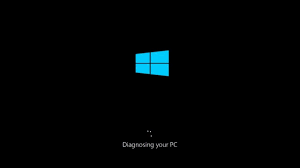
Turning on the computer and finding yourself faced with a black screen, a frozen screen, or an endless loading can be frustrating. When The PC turns on but Windows 10 does not start. The problem can depend on various causes, not always serious, but often difficult to interpret for those without technical skills.
In this guide, we analyze why Windows 10 won't start up , what to check first and which solutions to try, starting from the simplest to the most advanced interventions, without unnecessary technical jargon.
If the PC turns on correctly - the fans are spinning, the LEDs are lit, and maybe you even hear the noise of the disk - but Windows 10 won't start up , it means that the basic hardware is receiving power, but something is blocking the operating system from loading.
This scenario is different from a completely shut down computer: in most cases, in fact, the problem is software or related to the Windows startup process, although hardware failures cannot be ruled out.
When Windows 10 does not start, the most common causes are:
Failed Windows updates
damaged system files
errors in the bootloader
incompatible or corrupted drivers
sudden shutdowns or blackouts
Hard drive or SSD issues
Faulty RAM or poorly connected
Understanding the exact cause is not always immediate, but observing what appears on the screen helps a lot in finding one's bearings.
One of the most common cases is The PC turned on with a black screen . Before thinking about a Windows issue, it's important to distinguish between two situations:
The screen is completely black and nothing appears.
the Windows logo appears, but the loading gets stuck
In the first case, the problem might be related to the video connection, the monitor, or the graphics card. In the second case, however, it is much more likely that Windows 10 is unable to start correctly .
Try connecting the PC to another monitor or to another video port, if possible. If the problem persists, then it is the operating system that is not starting.
Before moving on to more advanced solutions, there are some simple but fundamental checks:
Disconnect all external peripherals, such as USB sticks, external hard drives, printers, and webcams. Sometimes Windows freezes trying to boot from an external device.
Restart the PC several times in a row. After two or three failed attempts, Windows should automatically launch the recovery environment.
If you use a laptop, try starting it up with only the power adapter connected, without the battery (if removable).
If the system does not start, Windows 10 provides a tool called Recovery Environment (WinRE) .
It usually activates automatically after several failed starts, but it can also be forced by turning off the PC during loading two or three times in a row.
From here you can access various useful options to solve the problem.
The first solution to try is the startup repair .
Windows will attempt to automatically identify and correct any errors that prevent the system from loading.
This operation does not involve data loss and is often sufficient to solve problems caused by updates or corrupted system files.
If the automatic repair doesn't work, you can try starting the PC in safe mode .
In this mode, Windows only loads the essential components, excluding unnecessary drivers and software.
If the PC starts correctly in safe mode, the problem could be caused by:
a recent driver
a recently installed program
an incompatible update
In these cases, uninstalling the problematic element can permanently solve the problem.
Another effective solution is the system restore .
Windows allows you to revert to a previous configuration, when the computer was working properly, without deleting personal files.
It is particularly useful if the problem has appeared after an update or a recent change to the system.
If none of the software solutions work, it is possible that the problem is hardware-related. The most often involved components are:
damaged hard drive or SSD
Faulty RAM
disconnected internal cables
A typical signal of disk problems is a very slow loading, abnormal noises or error messages related to booting. In these cases, it is advisable to carry out a thorough check or consult a technician.
If Windows 10 still won't start and the other options have not worked, it may be necessary. reinstall the operating system .
Windows also offers the possibility to execute a reset while keeping personal files , an intermediate solution that often solves the problem without losing important documents and data.
If instead the system is severely compromised, a full reinstallation ensures a clean and stable restoration.
To reduce the risk of the PC turning on but Windows not starting again, it is advisable:
keep Windows always updated
avoid sudden shutdowns
Use a UPS (Uninterruptible Power Supply) in case of frequent blackouts.
Update drivers and software only from reliable sources.
Perform regular backups of data
When The PC turns on but Windows 10 does not start up. The problem may seem serious, but it is often solvable with a few targeted steps. Acting calmly, following a logical procedure, is the best way to avoid unnecessary interventions or data loss.
If you need to reinstall the operating system or replace a non-working license, on Macrosoft Store Find all the versions of Microsoft Windows available , from Windows 10 to Windows 11, in a single dedicated section.
 Cómo activar Microsoft Office 2010: Guía Completa
 Corel Draw 2023: las novedades del software
 ¿Cuáles son los mejores sistemas operativos para PC?
 ¿Qué es la plataforma Microsoft Windows Server?
 ¿Qué son y para qué sirven los servidores RDS?

Microsoft Publisher cierra el 1 de octubre de 2026: qué sucede con los archivos .pub, quién los pierde realmente y...

Cómo abrir un archivo CDR sin CorelDRAW: herramientas gratuitas, convertidores en línea y los límites de cada uno....
¿Qué es Microsoft Office? Guía clara sobre la suite (Word, Excel, PowerPoint), las versiones disponibles y la...

¿Cuáles son los mejores lectores de PDF en 2026? Comparación entre programas gratuitos y de pago para Windows y Mac,...
¿Cuánto cuesta AutoCAD en 2026? Precio oficial de la suscripción Autodesk y las alternativas con licencia perpetua...
¿Cuánto cuesta el paquete Office en 2026? Comparación entre la suscripción a Microsoft 365 y la licencia perpetua:...
Descubre cómo restaurar Windows 7 de manera efectiva y sin estrés. Resuelve problemas comunes y optimiza tu PC con...
¿Necesitas instalar dos sistemas operativos? Enfrenta los desafíos comunes y encuentra la solución más adecuada para...

Las mejores alternativas a Photoshop en 2026. Descubre CorelDRAW, Affinity Photo, GIMP y otros software para retoque...
¿Qué es una PC sin sistema operativo y cuándo es conveniente comprarla? Descubre cómo instalar Windows o Linux en una...
Deja un comentario