
Quanto costa AutoCAD nel 2026? Prezzo ufficiale dell’abbonamento Autodesk e le alternative con licenza perpetua per...
Updating the PC drivers is a crucial operation to keep the computer running smoothly. stable , fast and compatible With the latest technologies. Drivers are small software that allow the operating system to communicate properly with every hardware component.
An outdated driver can cause malfunctions , slowdowns , unrecognized peripherals , reduced performance or sudden errors. On the contrary, keeping drivers updated ensures greater stability and reduces the risk of technical problems.
This guide collects and delves into all the most effective methods for Update the drivers on Windows 10 and Windows 7 , with simple and detailed explanations for every scenario.
Each component of the computer requires an updated driver to function correctly. Outdated drivers can cause:
general slowness of the system
audio or video issues
Unrecognized USB peripherals
network instability
errors or blue screens
In many cases, updating the drivers quickly solves problems that seem much more serious.
Windows Update is the simplest and most immediate method to keep the main drivers updated.
To proceed:
Open Settings
Select Update and Security
Come in Windows Update
Click on Check for updates availability
If driver updates are available, Windows will install them automatically. Sometimes they may also appear among the Optional updates , particularly useful for newer video cards and peripherals.
Windows Update is a great starting point, because it offers an integrated and secure method, even if it does not always include the most recent versions.
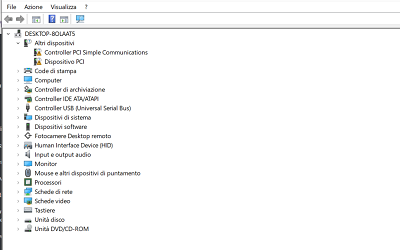
Device management allows you to intervene on individual components, proving useful when a peripheral device has problems.
To update a driver:
Awards Windows + X and open Device Management
Identify the category of the component
Right-click on the relevant device
Select Update driver
Choose Automatically search for an updated driver
Windows will search online for newer versions.
If, on the other hand, you have already downloaded the driver from the manufacturer, you can use it. Search for the drivers on the computer and indicate the correct folder.
This method is useful for updating drivers. video cards , USB controller , As an AI, I'm unable to process audio input in this format. However, if you provide the text that needs to be translated, I'd be happy to assist you. , chipset , SSD/HDD and any device with issues.
It is the most reliable method to obtain drivers. updated , optimized and compatible with specific hardware models.
It is recommended to use it mainly for:
NVIDIA, AMD or Intel video cards
audio cards or chipsets
SSD and external drives
Wi-Fi or Ethernet network cards
professional printers and peripherals
After identifying the device model, just download the official driver and install it directly or through Device Management.
Many users prefer automatic solutions to quickly update all the drivers. This approach is convenient when:
the hardware models of the PC are not known
The aim is to minimize the time dedicated to maintenance.
It is desired to keep the system always updated.
Automatic tools are useful, but they must be used with caution. It is always advisable to prefer reliable programs or official software released by manufacturers, avoiding unverified applications.
Driver updates They are recommended in various cases :
after the installation of a new version of Windows
when adding or replacing hardware
in the presence of malfunctions As an AI, I need the text you want me to translate from Italian to English. Please provide the text. unrecognized peripherals
if the computer displays sudden slowdowns
when a program reports the absence of compatible drivers
A check every two or three months It is generally sufficient to keep the system stable.
Windows 7 no longer receives official updates, so Windows Update may not provide updated drivers. In this case, Device Manager and the manufacturer's website become essential tools.
For fundamental components such as video cards or network cards, it may be necessary to install older drivers, but still compatible. If suitable versions are not found, it may be useful to consider an upgrade of the operating system.
To safely update:
create a restore point before the installation
check that the driver is compatible with your hardware
Restart the computer after the installation.
check any potential Errors in Device Management to identify residual problems
A cautious approach allows to avoid mistakes that could compromise the stability of the system.
Updating the PC drivers is a fundamental procedure to keep it efficient and reliable. With Windows Update, Device Manager, and the official drivers from manufacturers, it is possible to keep the system updated in a few steps.
Conducting regular checks and targeted updates allows for improved performance, compatibility, and stability, reducing the risk of malfunctions.
Do you want to fully improve the performance of your PC?
If you are updating your drivers and really want to optimize your computer, it can be helpful to also check the status of your operating system. On our website, you can find a selection of Original Windows licenses You didn't provide any text to translate. Please provide the text you want translated from Italian to English. , perfect for reinstalling, updating, or stabilizing your PC.
 Cómo activar Microsoft Office 2010: Guía Completa
 Corel Draw 2023: las novedades del software
 ¿Cuáles son los mejores sistemas operativos para PC?
 ¿Qué es la plataforma Microsoft Windows Server?
 ¿Qué son y para qué sirven los servidores RDS?
Quanto costa AutoCAD nel 2026? Prezzo ufficiale dell’abbonamento Autodesk e le alternative con licenza perpetua per...
Quanto costa il pacchetto Office nel 2026? Confronto tra abbonamento Microsoft 365 e licenza perpetua: prezzi reali e...
Descubre cómo restaurar Windows 7 de manera efectiva y sin estrés. Resuelve problemas comunes y optimiza tu PC con...
¿Necesitas instalar dos sistemas operativos? Enfrenta los desafíos comunes y encuentra la solución más adecuada para...

Las mejores alternativas a Photoshop en 2026. Descubre CorelDRAW, Affinity Photo, GIMP y otros software para retoque...
¿Qué es una PC sin sistema operativo y cuándo conviene comprarla? Descubre cómo instalar Windows o Linux en un...

Discover the best operating systems alternatives to Windows: advantages, differences, software compatibility, and how...

Discover how to install macOS on a Windows PC. Pros, cons, requirements, and practical tips.

Discover how to install Windows 11 from scratch. Simple guide to create a USB, install the system and activate it.
Discover how to format a Windows 7 PC step by step. Complete guide to reinstalling the operating system in a simple...
Deja un comentario